10 Tips on How to Organize Slack Channels

There are often tonnes of communications happening in each company every day. Channels are one of Slack’s core features for bringing order to your team communication. By creating channels for different functions, projects, topics or more, you can organize team conversations in ways that work best for your team.
As channels are such a core part of Slack, how you organize your Slack channels determines how easily your teammates can find the information they need, and how productive and distraction-free their day is.
Organize your Slack channels with a clear naming system and the right defaults, so your workspace stays tidy and scannable as your team grows.
What Slack channels should I create?
When your team first launches Slack, there are two default channels: #general and #random. #general is a good place for company-wide information that are business related while the #random channel can be used for non-work related chit-chats.
1. Organize Slack channels by teams, projects and functions
A good way to start creating new channels on top of the two default channels would be creating channels based on teams, projects and functions. For examples:
- A channel that involves a whole functional team for more high level discussion and updates (#team-marketing, #team-sales, #team-cs)
- A channel for discussion on more specific functions in the team (#cs-tickets, #cs-implementation, #cs-churns)
- A channel to group projects that involves a cross-team squad(#proj-blog-redesign, #proj-referral-program)
2. Create Slack channels for good-reads / knowledge sharing
Other than channels for really focused work-related discussion, it’s also a good idea to create some good-reads or knowledge sharing channels to encourage teammates to share industry best-practices or if they read across something inspiring. For examples:
- Divide the channels by topics so people can subscribe to channels they are interested in learning more (#learn-sales, #learn-marketing)
- At Kipwise, we also have a company wide channel #company-competitors to share market intelligence when we spot any interesting move from our competitors
3. Create Slack channels for social or fun purposes
Other than simply created work-related channels, it’s also a good idea to create some informal or social channels to help your teammates build a stronger bonding. For examples:
- Create some channels based on hobbies so teammates can plan some off-work activities together (#fun-foodie, #fun-sports, #fun-music)
4. Create separate channels for bots / automation
As Slack offers a lot of useful integrations, it’s common that teams have set up some bots / automations that send updates to Slack automatically. If you expect those bots are the busy ones that will likely send numerous updates to Slack, it’s a good idea to create separate channels for them otherwise important information sent by real teammates might get buried easily by the bot messages. For examples,
- At Kipwise, we are using Intercom as our customer support tool and we have a channel called #cs-tickets where Intercom will send us a Slack message when there is new tickets or replies received.
Use naming conventions to keep your Slack channels organized
Other than creating the right channels, using the right tactics to name your channels also keeps things organized and helps teammates find the channels that need their attention.
1. Use prefixes to group similar channels
One tactic that I regularly see teams using is by creating prefixes for channels that should be grouped together. For example,
- Use the prefixes #company- for channels that all company members should pay attention to (#company-announcements, #company-competitors)
- Use the prefixes #team- for channels that are for each internal functional team (#team-marketing, #team-sales, #team-cs)
- Use the predefined team prefix to group all channels related to the same team (#sales-leads, #sales-wins)
- Use the prefix #proj to group projects that involves a cross-team squad (#proj-blog-redesign, #proj-referral-program)
- Use the prefix #fun- to group all channels that are for fun or social purposes (#fun-foodie, #fun-sports, #fun-music)
2. Use the channel description to state purposes clearly
Other than setting proper guidelines for naming conventions, it’s also a good practice to always add a clear channel description whenever a new channel is created. For example, you may want to state clearly about what should be and shouldn’t be posted in a channel.

How to make sure teammates join the right channels?
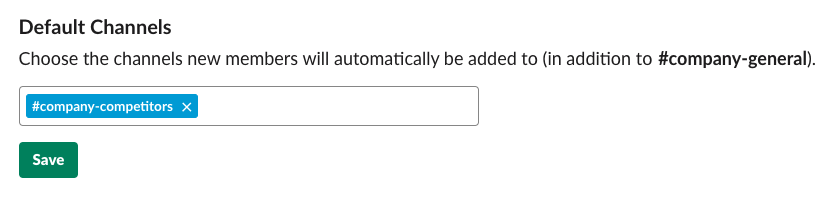
1. Set default channels that all new members will automatically be added to
You can set default channels that all new members will automatically be added to when they join the workspace. This way, you can welcome and direct new team members to the right channels and help new teammates access important information that they should know right away.
2. Share the link to a company wide channel when a new channel is created
While there isn’t currently a way to add people to channels in bulk, when you create a new channel, it might be a good idea to share a link to a company wide channel so your teammates can visit the new channel and join if they want.

More productivity tips
To keep yourself in the loop, you might have to join quite a number of channels in your company. To reduce noise and distraction, here are some tips to help you stay productive.
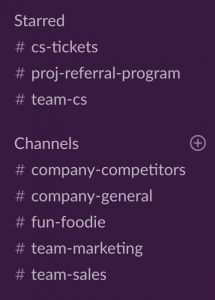
1. Pin important Slack channels in your own personal sidebar
You can star important channels so they will appear in the Starred section at the top of the channel list.
2. Create custom notifications for channels
To reduce noise and distraction, you can mute channels that you only need to check occasionally or mute channels that have lots of updates from bots.
If you have muted a channel, it won’t appear bolded when there’s unread activity and you won’t receive notifications for any activity in the channel, including @mentions. And muted channels will appear in gray at the bottom of your channel list.
An AI agent that works inside your Slack threads
Organising channels stops questions landing in the wrong place. It does not stop them being asked twice. Kipwise Agent answers in the thread, as you, so the answer stays where the question was.
- “Do we have a doc about this?”: it searches your knowledge base, reads the page, and answers with the relevant part and a link to the source
- “Can someone write this up?”: it drafts a page from the thread, files it in the folder you name, publishes it and posts the link
- “Post this to the channel”: it shares a page into a Slack channel you name
- “Every week, summarise…”: it runs a request on a schedule and posts the result where the team will see it
It only ever sees the pages you can see, and everything it writes in Kipwise is attributed to you.
More tips on using Slack
We hope the tips shared in this article can help you get your Slack team more organized. If you are interested, explore the tag Slack tips of our blog for more tips 💡to unleash the full potential of Slack.